Skip To Content
FleetFusionPlatform Login

RouteFusion

Route Planning, Dispatch & TMS. Connected.

Manage orders, schedule routes and keep dispatch in control. RouteFusion connects the plan with driver progress, door-to-door navigation and electronic proof of delivery.

See The Whole Plan

Every Order. Every Route. One Working Plan.

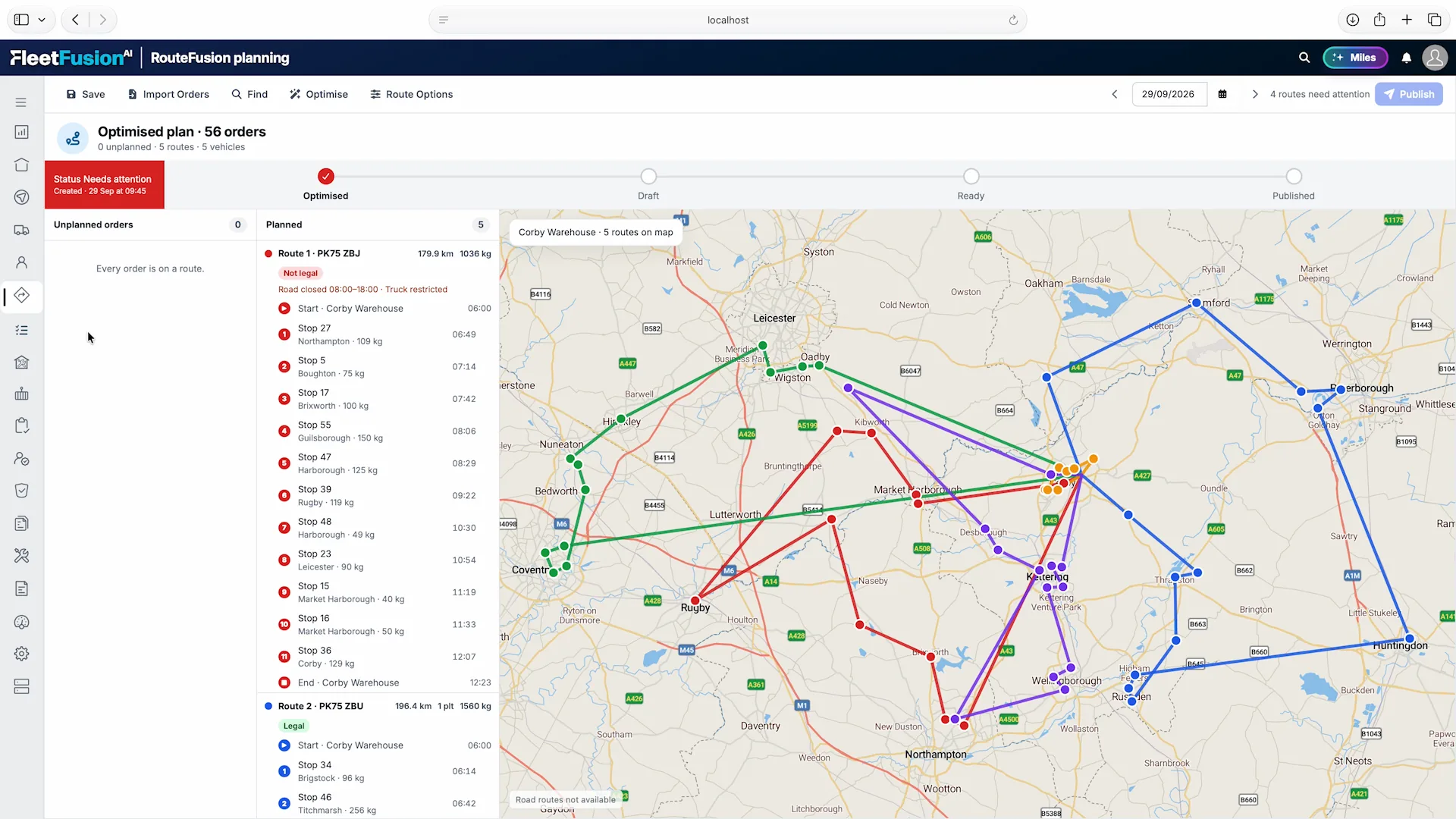
Bring the day’s orders onto one map. Review the stop sequence, arrival times, distance and load for each vehicle, with route warnings visible before you publish the plan.

RouteFusion optimized plan showing five colored routes, ordered stops, arrival times, vehicle loads and a road restriction warning.
The planning workspace brings routes, stops and exceptions together. Flagged restrictions stay visible for planner review.
One Daily Workflow

From The First Order To The Final Stop.

Give planners, dispatchers and drivers a clear view of the work. Follow each route through execution, then compare the day’s results with the original plan.

  1. OrdersKnow The Work
  2. Plan RoutesBuild The Schedule
  3. DispatchAssign The Day
  4. CompleteCapture ePOD
  5. ReviewPlan vs. Actual
The RouteFusion workflow: from order management to delivery evidence and review.
Order Management

Give Every Delivery The Details It Needs.

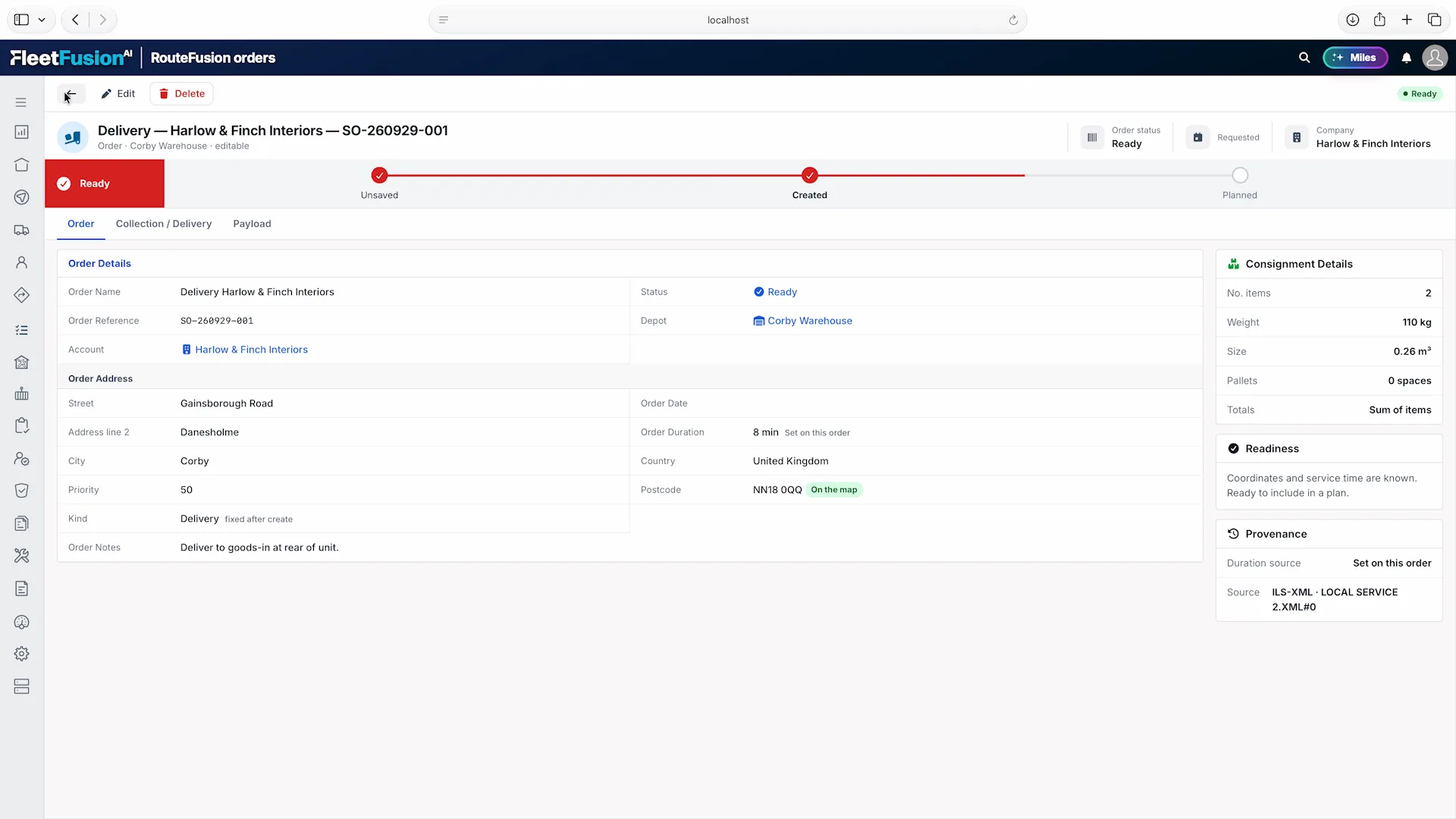
A useful route starts with a complete order. Keep the customer, depot, delivery address, service duration and delivery instructions together, alongside the weight and volume of the consignment.

  • Review collection, delivery and payload details in one record.
  • See whether location and service-time information is ready for planning.
  • Keep the source of imported information visible for follow-up.
RouteFusion order record with customer, delivery address, service duration, notes, load weight, volume and readiness status.
An order record connects the customer’s request with the information the planner and driver need.
Plan Around Your Fleet

The Right Load. The Right Vehicle. A Workable Day.

Your vehicles do not all have the same capacity or working day. Set the limits that shape the plan, use shared defaults where they fit, and override them for individual vehicles when the job requires it.

RouteFusion vehicle routing configuration showing depot, payload, volume, pallet spaces, distance limits and maximum orders.
Vehicle routing settings: capacity, depot and operating limits.

Capacity That Matches The Vehicle

Define payload, volume and pallet spaces alongside route and daily distance limits. Vehicle-type defaults reduce repeated setup, while individual settings let you account for a different load space or operating requirement.

RouteFusion vehicle working hours showing time zone, shift start, shift span, maximum work and driving time, working days and break policy.
Working-hours settings: shifts, driving time, working days and break policies.

Schedules That Reflect The Working Day

Set shift start, shift span, maximum working and driving time, working days and the applicable break policy. Shared settings flow from the company, depot and vehicle type, with individual overrides clearly identified.

Three Capacity Modes. One Workable Load.

Space Is Only Half The Story.
The Weight Has To Fit Too.

Plan by weight, load volume or pallet spaces. RouteFusion checks the capacity configured for each vehicle against the work assigned to it, so a route reflects what the vehicle can carry.

Use pallet spaces together with weight: a load can fit on the floor and still exceed the payload. Keep the remaining space and carrying capacity visible as orders are added.

Weight kgVolume m³Pallet Spaces + Weight
Inside The Load Space

See What’s Loaded. Know What’s Available.

Illustrative Load
Available load space inside the RouteFusion vehicleA cutaway delivery truck shows the loaded pallets. A translucent green rectangular cuboid fills the unused rear load space to show the capacity still available.

Load Volume

24 / 36 m³ Used

12 m³ Available

Payload Weight

4,800 / 8,000 kg Used

3,200 kg Available

Pallet Spaces

6 / 10 Spaces Used

4 Spaces Available

Illustrative capacities and load. RouteFusion uses the vehicle’s configured limits and the weight, volume or pallet requirements recorded against its orders.
Match The Vehicle To The Customer

The Shortest Route Isn’t Enough.
The Delivery Has To Work.

A customer without a forklift may need a tail lift. Another site may require side access from a curtain-side vehicle. RouteFusion brings those requirements into planning alongside capacity, delivery windows and the time needed to unload.

Match the job to a vehicle that can carry the load, serve the site and arrive within the agreed window. A vehicle with free capacity is only useful if it can complete the delivery.

RouteFusion Matches The RequirementsLoad Capacity · Vehicle Equipment · Customer Access · Time Windows

Tail-Lift Vehicle

Unload without a loading dock or forklift.

Store Delivery

No Forklift On Site

Tail Lift Required09:00–11:00 Window

Allow time to lower the load and complete the delivery.

Curtain-Side Vehicle

Give the receiving team access from the side.

Distribution Centre

Side Unloading Required

Curtain Side Required13:00–15:00 Window

Match the unloading method and the customer’s booking window.

Illustrative customer requirements. Equipment, access needs, service duration and delivery windows belong in the plan before dispatch.

Vehicle Equipment

Match tail lifts, curtain sides and other configured capabilities to the work that needs them.

Customer Requirements

Keep unloading needs and site access with the delivery, so suitability informs vehicle assignment.

Delivery Windows

Plan arrival around the customer’s available time, alongside travel and the rest of the route.

Time To Do The Job

Include unloading and service time, so the schedule accounts for work at the stop as well as driving.

EV Routing & Mixed Fleets

Different Powertrains. One Connected Route Plan.

Route electric vehicles within their configured distance allowance. Set a limit for each vehicle and plan the day around it, including the return to depot, rather than considering only the outward journey.

Run EVs alongside diesel and other conventional vehicles in the same fleet. RouteFusion uses each vehicle’s distance, capacity and delivery constraints to match local rounds and longer-distance work to suitable vehicles.

Plan Around Each Vehicle

Local EV Rounds. Longer Routes. One Fleet.

Illustrative Routes

Electric Vehicle

Local Deliveries + Return To Depot

142 km Planned
  1. Depot
  2. Store
  3. Customer
  4. Depot
Configured Limit 180 km38 km Allowance Remaining

Diesel / Conventional Vehicle

Longer-Distance Work In The Same Plan

286 km Planned
  1. Depot
  2. Regional Hub
  3. Customer
  4. Depot

Match the longer round to a suitable vehicle, while keeping its payload, equipment, delivery windows and working day in view.

Example distances show how different vehicle limits shape a mixed-fleet plan. Configure each vehicle’s distance allowance for the vehicle and the operation.

Vehicle-Specific Distance Limits

Use an appropriate distance allowance for each EV, rather than giving every vehicle the same route limit.

Capacity Still Counts

Keep volume, payload, pallet space and unloading requirements in the decision alongside distance.

A Single Dispatch View

Review electric and conventional vehicle assignments together, then give drivers one connected workflow.

Review Before Dispatch

See Where Every Order Fits.

Move from a list of jobs to a clear allocation across the fleet. The planned-order view keeps the route’s stops, timings and load beside the map, so a dispatcher can inspect the proposed workload and identify issues that need attention.

Check unresolved warnings and the order sequence before releasing work to drivers. Keep the proposed assignments clear so the team can review the day before vehicles leave.

RouteFusion planned orders grouped into five routes, with stop lists, times and straight-line map connections.
Planned-order allocation overview. Map connections in this view show stop allocation rather than road directions.
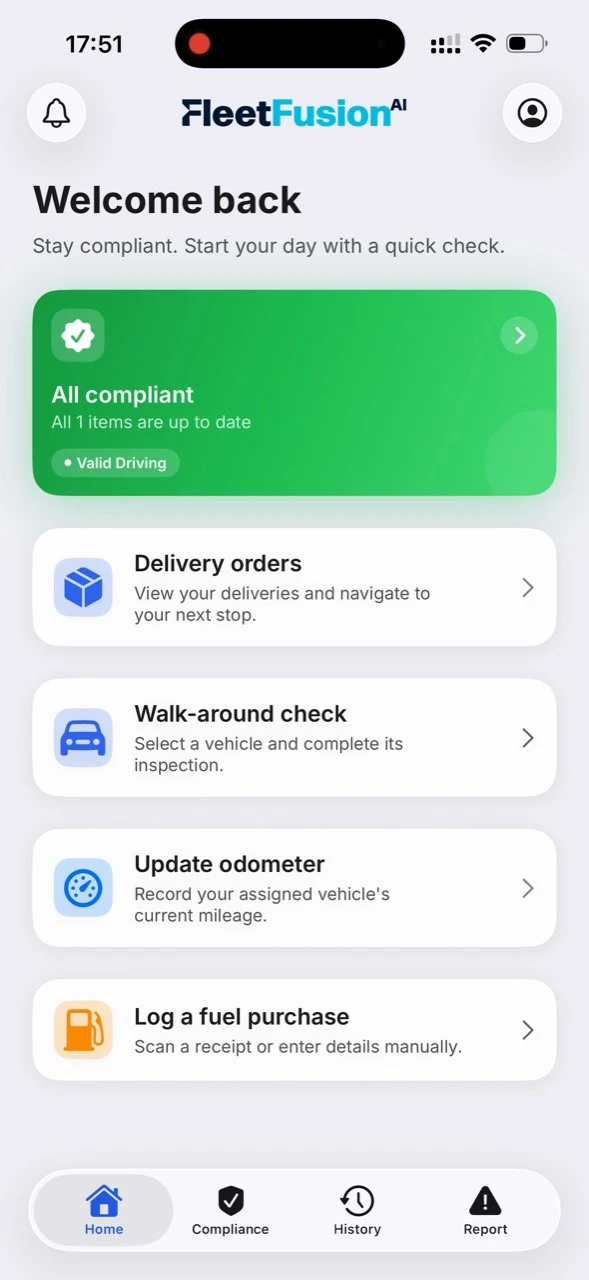
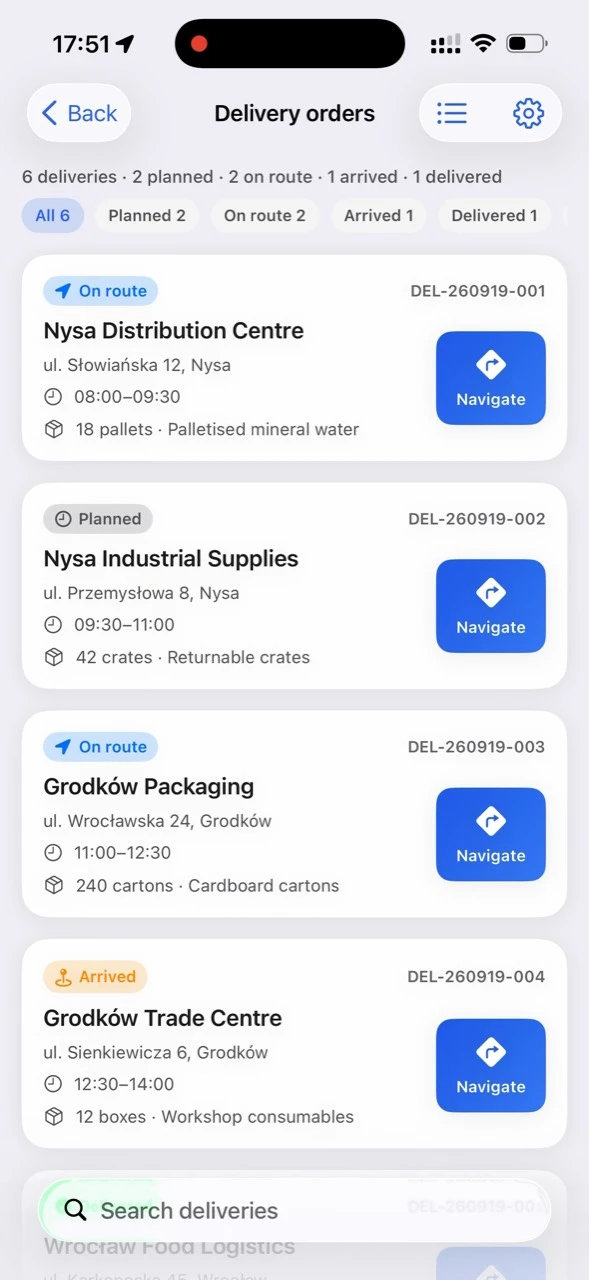
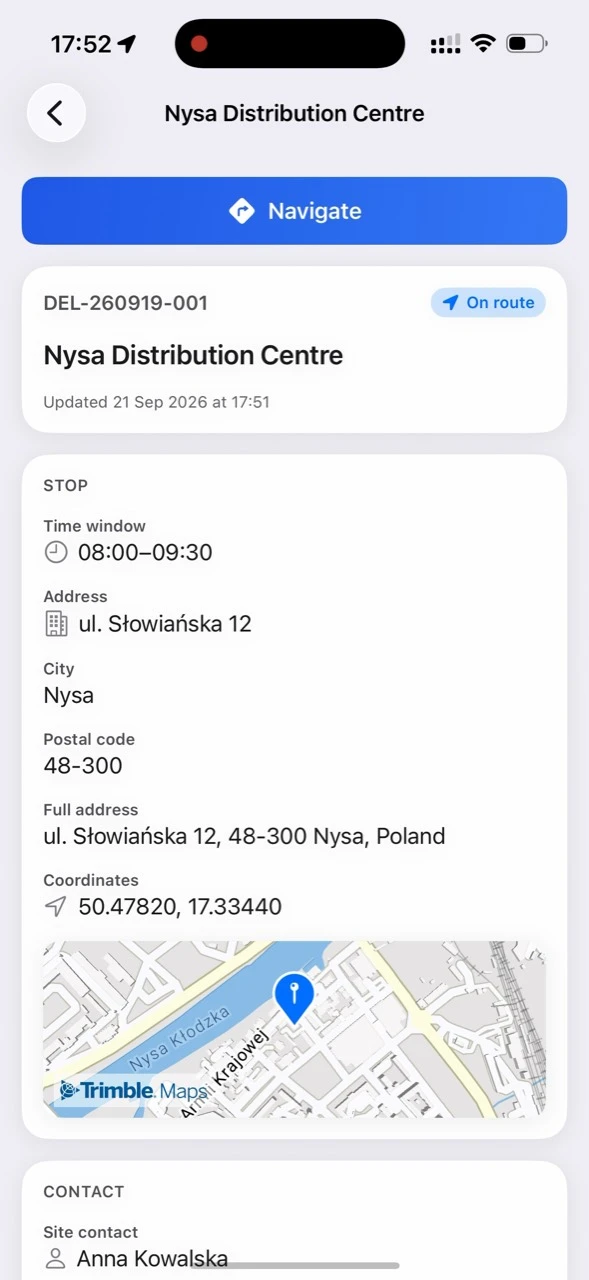
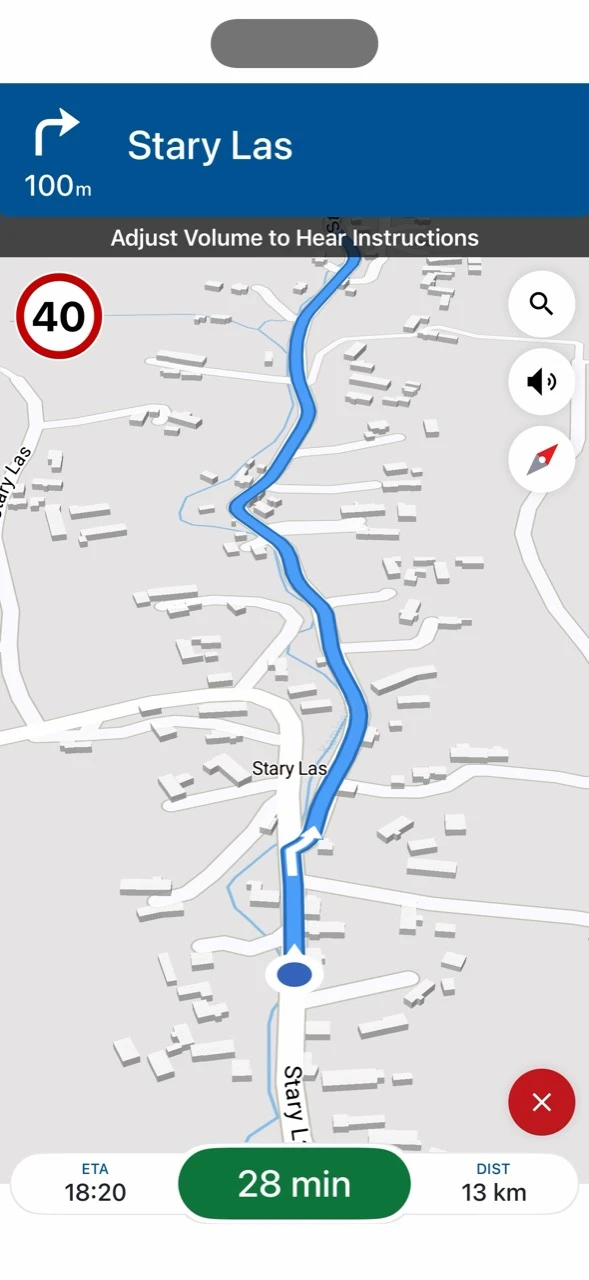
RouteFusion Driver App

From The Delivery List To The Next Door.

Give drivers the details they need to carry out the plan. Delivery orders, stop information and navigation sit alongside their everyday fleet tasks, keeping the next action close at hand.

Swipe to explore the driver app.

Keep The Office And Driver Connected

Follow The Work Beyond The Route Plan.

Use live dispatch, electronic proof of delivery and planned-versus-actual review to follow the work through completion. Keep delivery evidence connected to the order, investigate delays with the route context in view, and use what happened on the road to improve the next schedule.

Live Dispatch

Keep order assignments and progress in the same operational workflow.

Electronic Proof Of Delivery

Keep completion evidence with the job it records, ready for office review.

Planned Versus Actual

Compare the intended schedule with completed activity and follow up on recurring differences.

Keep Exploring FleetFusion

Bring Your Orders And Fleet Into The Plan.

Connect the systems that supply your orders and prepare the vehicle, customer and delivery information your planners need.