
Decide What Must Be Visible
A road-facing view records the journey ahead. A dual-lens model adds a cab view. Check the individual model’s expansion channels if you need additional coverage.
FleetFusion · Fleet Dash Cameras
Road-facing and dual-lens cameras for connected fleet video, with clear model specifications and configuration choices.

Road and driver views in one connected dashcam, with expansion for additional camera coverage.
View Specifications →
A road-facing dashcam with room to add external cameras as your coverage needs grow.
View Specifications →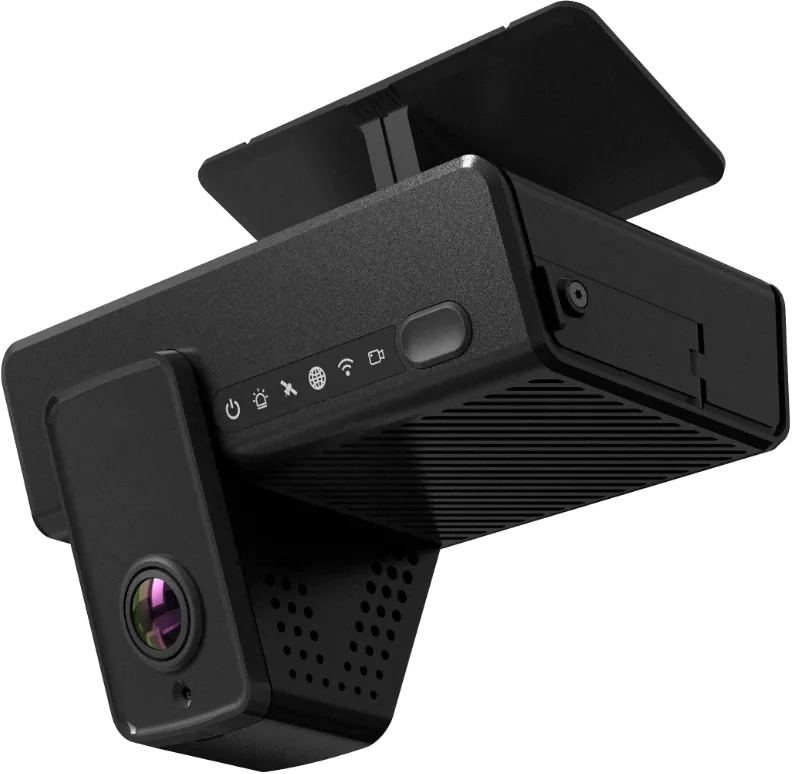
A compact dual-lens camera for fleets that need a connected view of both the road and the cab.
View Specifications →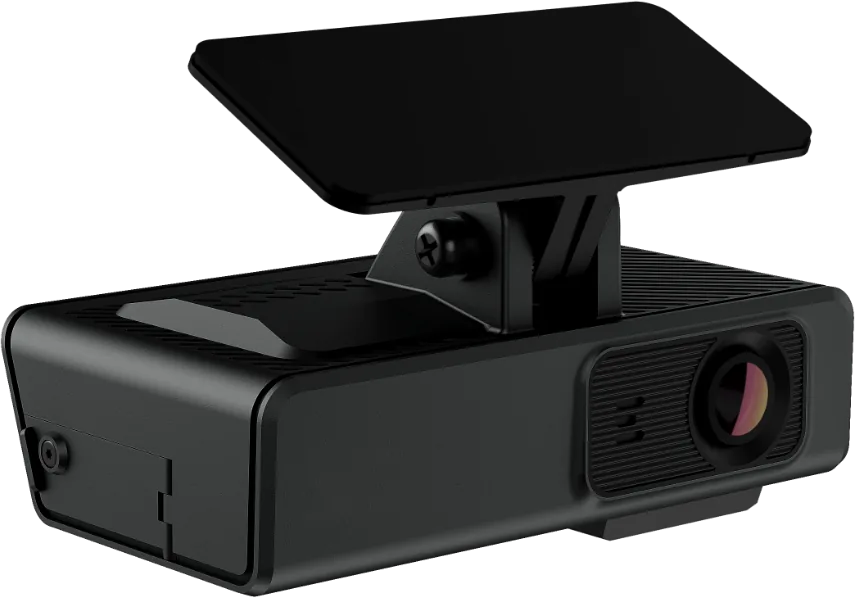
Road-facing video with an additional camera channel for a flexible fleet installation.
View Specifications →Specify your vehicle types, operating states and mobile network. The radio variant, carrier support and installation must match the intended deployment.
Specify your operating countries, vehicle types, network and camera coverage. Match equipment and installation evidence to the requirements of each country.
Confirm firmware, supported camera functions, data plan and video retention with your selected FleetFusion configuration.
| Model | Views | Channels | Road Recording | Storage |
|---|---|---|---|---|
| FS-AD-PLUS-2.0-D | Road-facing and driver-facing | 4 total: 2 built-in, 2 extension | Up to 1920P at 25 fps with AI enabled | Two microSD slots, up to 256 GB per card |
| FS-AD-PLUS-2.0-S | Built-in road-facing lens | 3 total: 1 built-in, 2 extension | Up to 1920P at 25 fps with AI enabled | Two microSD slots, up to 256 GB per card |
| FS-C6-2.0-D | Road-facing and driver-facing | 2 video channels; 1 audio channel | Up to 1080P at 25 fps with AI enabled | Two microSD slots, up to 512 GB per card |
| FS-C6-2.0-S | Built-in road-facing lens | 2 video channels; 1 built-in by default | Up to 1080P at 25 fps with AI enabled | Two microSD slots, up to 512 GB per card |
Open a model for its full feature overview, technical specifications and downloadable documents.
A fleet dashcam decision starts with the questions your team needs video to answer. Work through coverage, installation, evidence access and ongoing use before comparing individual models.
The camera is the beginning of the workflow. The useful result is a clear record of what happened, available to the person investigating an incident or speaking with the driver.
Information Becomes Action
A road-facing view records the journey ahead. A dual-lens model adds a cab view. Check the individual model’s expansion channels if you need additional coverage.
Agree which events the team needs to review, who can access them and how long footage needs to remain available. Match storage and connectivity to the operating pattern.
Bring supported camera events into FleetFusion Vision. Review clips with their vehicle and location context, then record the coaching or incident response.
Connected camera events in the FleetFusion media library.
Open the screenshot to explore the details at full size.
