
Arrange A Logical Walk Around
Order the items to follow the inspection: bodywork, lights, tires, cab equipment and the other checks your operation needs. Mark essential responses as required.
Walk Around Checks / DVIR
Guide drivers through vehicle inspections, capture photos and signatures, and connect reported defects to your maintenance team. Digital walk around checks and Driver Vehicle Inspection Reports (DVIR) in one connected fleet platform.
A useful vehicle check records more than a tick. FleetFusion guides the driver through the right inspection, captures what they found and gives the office the detail to act on it.
Start from the driver app, identify the vehicle and follow the checklist assigned to its vehicle type.
Mark components as pass or fail. Add a note to explain a concern and attach a photo to the item it belongs to.
A photo of damaged bodywork or a note about a failed light gives the next person something specific to review.
Keep the answers, evidence and driver signature together. If coverage drops, the submission waits to upload when the connection returns.

Open Walk-around check from the driver home screen.

The actual checklist: progress, pass/fail answers, bodywork photos and item notes.
Swipe to see both screens.
A van, a coach and a truck do not need an identical inspection form. Build checklists centrally and assign them to vehicle types, so the driver works through the questions that matter for the vehicle in front of them.
Order the items to follow the inspection: bodywork, lights, tires, cab equipment and the other checks your operation needs. Mark essential responses as required.
Use the response that suits the question: pass/fail, a number, text, a selection or a photo. Keep the evidence beside the relevant item so a reviewer understands the finding.
Publish a new checklist version when the process changes. Previous submissions stay linked to the version the driver actually completed.
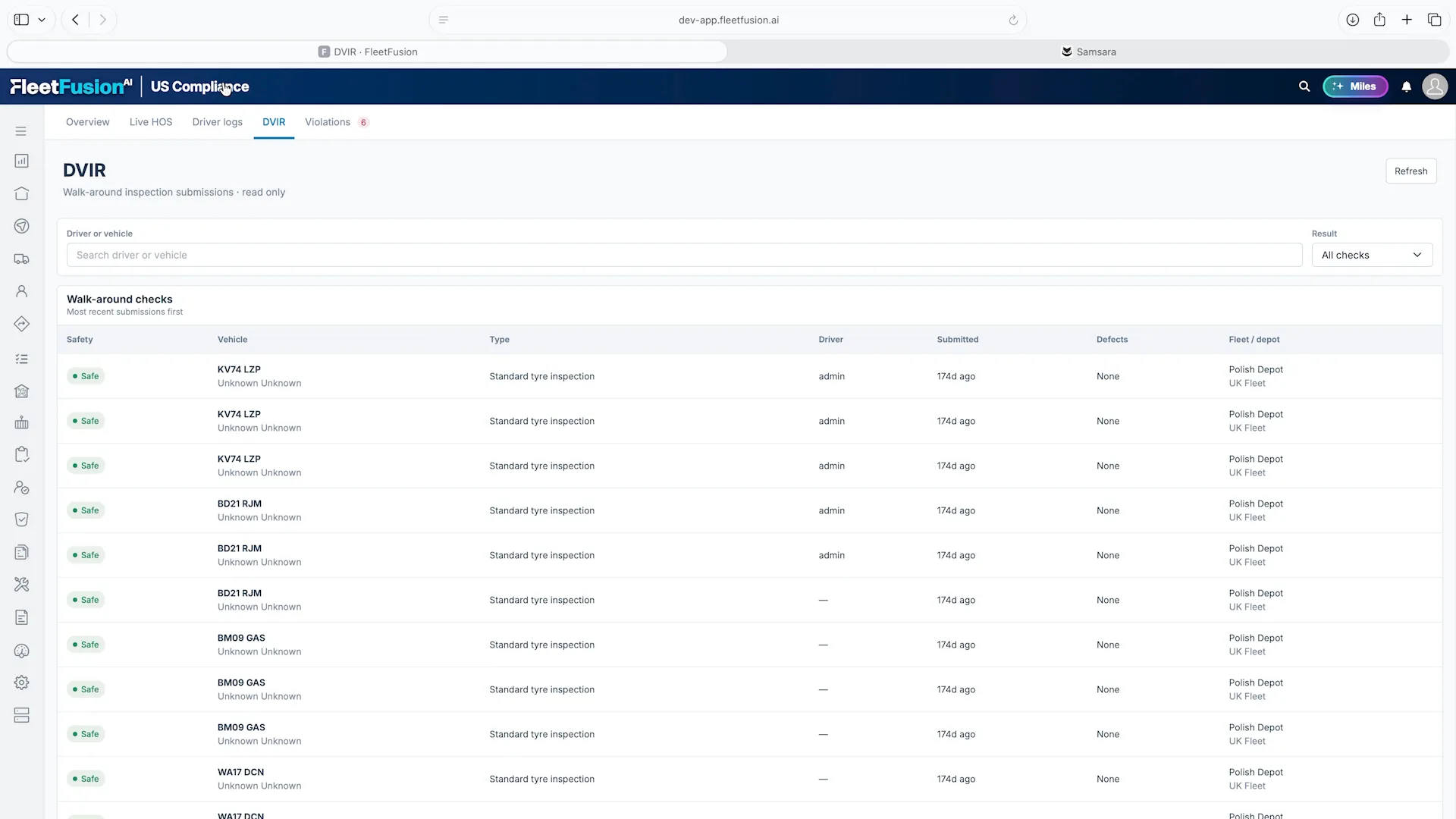
Review walk-around submissions from the US Compliance workspace. Search for a driver or vehicle and filter by result to focus on the inspection records your team needs to review.
This read-only view brings submitted checks together for review. Drivers complete their inspections in the app, while the wider FleetFusion workflow keeps reported defects connected to follow-up.

A failed inspection is easier to act on when the answers, photographs and vehicle details stay together. Review the inspection score, failed items, completion time and recorded location before arranging the next step.

Create a checklist with the sections and questions your drivers need. Set required answers, add photo fields and review the mobile preview, so the office can see how the check will appear in the driver’s hand.

Review walkaround submissions across the fleet instead of opening every vehicle separately. Filters for check type, vehicle type, depot and fleet help the office focus on the relevant inspections and their reported defects.

A vehicle-by-day view makes inspection coverage easy to review. See recorded submissions, passes, warnings and defects across the selected period, then focus on the depot, fleet or vehicle type you manage.
The driver app guides the inspection from vehicle identification to a signed, time-stamped submission. Clear photos and notes help the fleet office understand a defect without asking the driver to describe it again.
Information Becomes Action
Scan a registration or choose a manual checklist. Centrally published templates give drivers the relevant questions for the vehicle and task.
Use guided vehicle photos and item-level notes or images. Required questions must be answered before the checklist can be completed.
The app caches the submission when there is no connection and uploads it when coverage returns. The office can then review the inspection and follow the resulting defects.
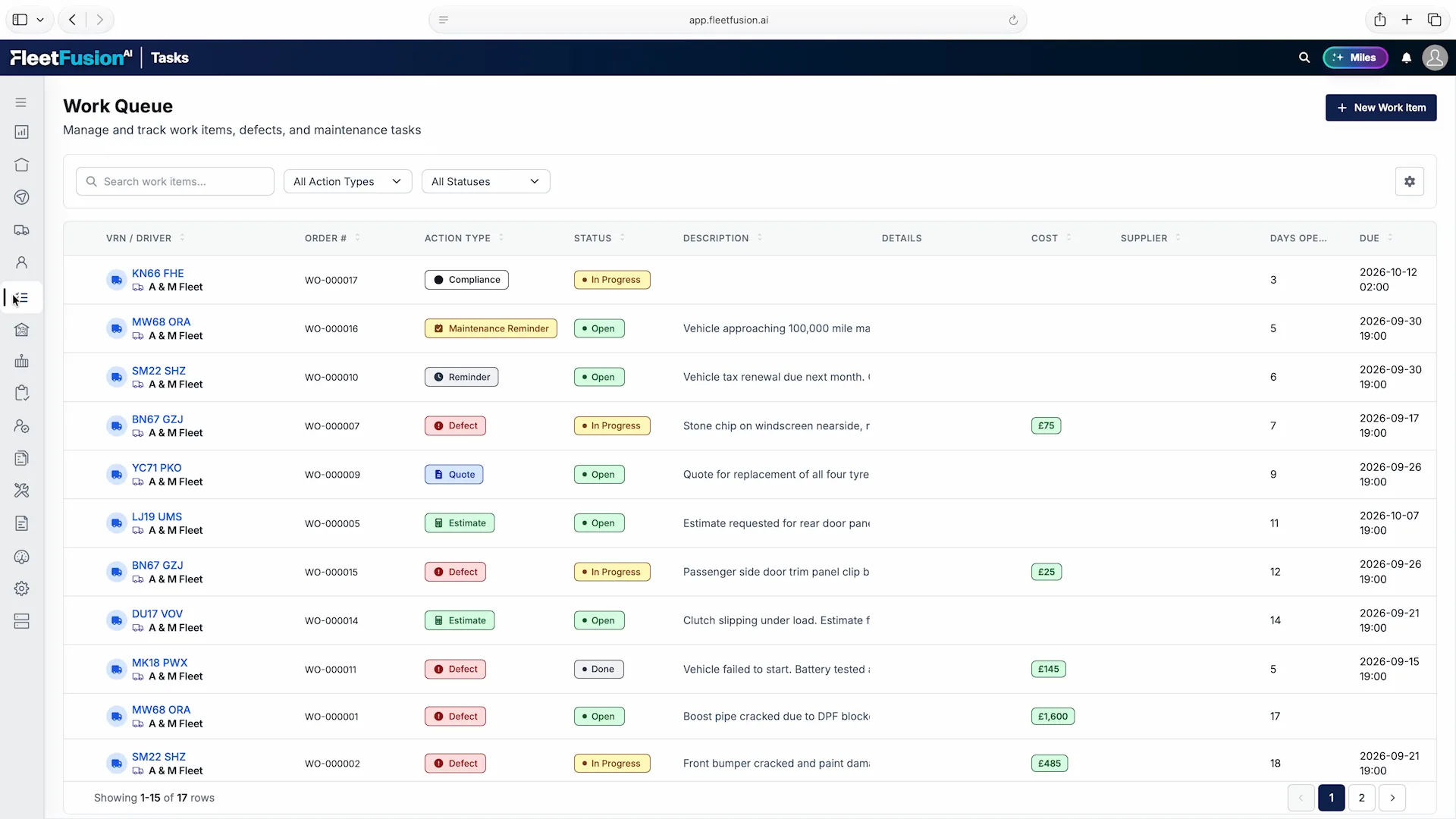
When an inspection contains defects, FleetFusion creates a work item in the Work Queue. The failed component, driver’s notes and attached photos give the office a starting point for deciding what needs attention.
Filter submissions to those with defects, search for a vehicle or driver, and open the complete check. See who submitted it, when it was recorded and which checklist was used.
Use the Work Queue and maintenance tools to follow the issue through to resolution. Keep the inspection context with the vehicle, so the workshop can see why the work was raised.
Review defect trends over time and look for vehicles with recurring issues. Use that history to focus follow-up and maintenance discussions.

The home screen shows compliance status, safety score and a one-tap “Walk-around check” card.

Type the VRN or look it up, and the app finds the vehicle and its assigned checklist template.

Point the camera at the number plate to identify the vehicle in seconds.

Choose the template for the vehicle, such as a standard pre-use or a walkaround vehicle check.

Exterior condition, lights & indicators, tyres & wheels, fluids, cab & interior, and safety equipment, each item marked Pass or Fail.

Every item can carry photos and notes, so evidence is captured at the vehicle.

Fire extinguisher, warning triangle, first-aid kit and seatbelts are confirmed before the vehicle leaves.

The driver signs on screen and can tap the vehicle damage map to mark any damage.

The check is time-stamped and becomes visible in the platform once it has synced.
DVIR stands for Driver Vehicle Inspection Report. FleetFusion brings the vehicle check, inspection answers, driver signature and any reported defects into a digital record. Your inspection templates and review process are configured for your operation.
By typing or looking up the registration, or by pointing the phone camera at the number plate.
A failed item records the defect and its evidence. FleetFusion creates a work item in the Work Queue for review and follow-up through the maintenance workflow.
On the vehicle record and the compliance dashboard once the submission has synced.